

Summary
To make a resume in Google Docs, open a blank document or a gallery template, switch it to Pages format in File > Page setup, and set 0.5 to 1 inch margins. Use Format > Paragraph styles for section headings, a right tab stop for dates, and plain bullets for results. Keep contact details out of the header, avoid layout tables and text boxes, then use File > Download > PDF Document.
You can make a resume in Google Docs in about an hour: start from a blank document or a template, fix the page setup, style your headings, line up dates with a tab stop, and download a PDF. The tools are free, and every change saves automatically.
The hard part is not the typing. It is the formatting that breaks when an applicant tracking system (ATS) reads the file, or when a recruiter opens it on another device. This guide walks through how to make a resume in Google Docs with the exact menus to click, verified against Google's own help pages.
Prefer a ready-made layout? Our Google Docs resume template guide compares the built-in designs. This article is the build-it-yourself version.
Should you start from a template or a blank document?
Start from a blank document if you want full control and the safest ATS layout. Start from a template if you want speed, but check it first for layout tables, two columns and contact details in the page header. Either way, the page setup, heading and download steps below are the same.
Google Docs has a resume section in its template gallery. To open it, go to the Google Docs home screen and click Template gallery at the top right, then pick a design. Google's help page confirms that a new file with the template opens straight away.
Templates are fast, but some use two columns or spacing that shifts when you delete a placeholder. Santa Monica College Career Services advises job seekers to avoid "fancy custom resume templates" because ATS often convert documents to text-only files.
A simple decision rule:
- Blank document if you apply through online portals, change careers, or want one column you fully control.
- Template if you mostly email resumes to people, and the template is already one column.
If you open a template and see cell outlines when you click near the text, the layout is built on a table. Rebuild that section as plain text before you send it.
How do you set up the page for a resume in Google Docs?
Open File > Page setup, choose Pages instead of Pageless, set paper size to Letter for US jobs, and set margins between 0.5 and 1 inch. Pageless documents cannot use margins or page breaks, so a resume in Google Docs should always use the Pages format before you add content.
New documents can open in pageless format, which scrolls endlessly with no page edges. That looks clean on screen but hides your real page count. According to Google Docs Help, margins, paper size and orientation "aren't available in documents that are in pageless format."
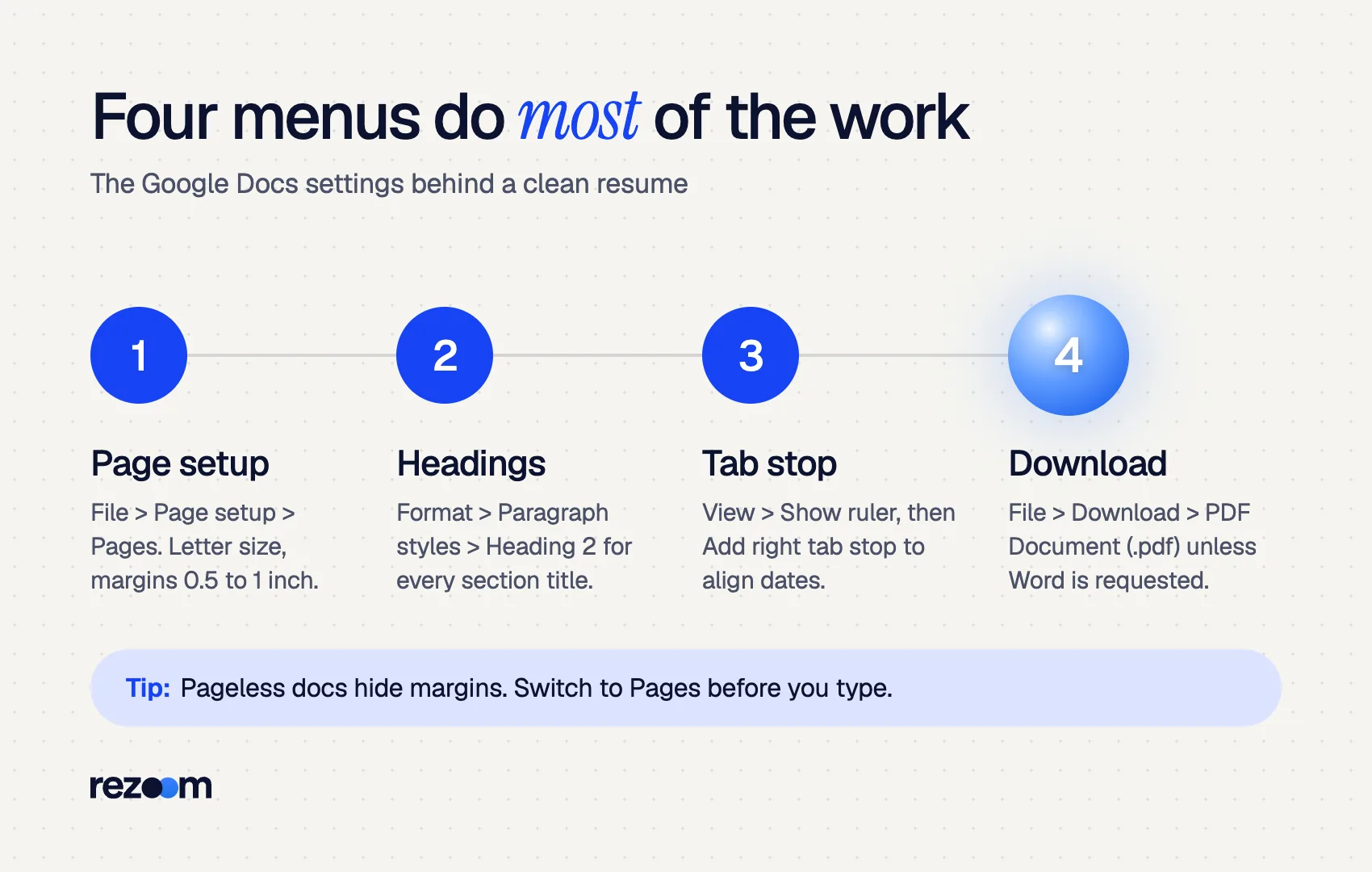
Follow these steps:
- Click File > Page setup.
- At the top of the dialog, select Pages.
- Set Paper size to Letter (8.5 x 11 in) for US employers, or A4 for most other countries.
- Set all four Margins to 1 inch, or as low as 0.5 inch if you are tight on space.
- Click OK. Click Set as default first if you want every new document to start this way.
You can also switch formats from the Format menu, which offers "Switch to Pages format," as Google's page setup guide explains.
| Setting | Where in Google Docs | Recommended value |
|---|---|---|
| Page format | File > Page setup > Pages | Pages, not Pageless |
| Paper size | File > Page setup | Letter (US) or A4 |
| Margins | File > Page setup | 0.5 to 1 inch |
| Body font | Toolbar font menu | Arial, Calibri or Georgia, 10–12 pt |
| Line spacing | Format > Line & paragraph spacing | Single or 1.15 |
| Headings | Format > Paragraph styles | Heading 2, 14–16 pt |
Font size matters more than font choice. The Santa Clara University Career Center recommends 10–12 point body text and 14–16 point headings, in common fonts such as Arial or Calibri. For a deeper comparison, see our guide to the best fonts for a resume and our sibling article on resume font size.
How do you add your name, contact details and section headings?
Type your name on the first line of the page body and style it as Title or Heading 1. Put phone, email, city and LinkedIn on one line below it, not in the page header. Then type each section name and apply Heading 2 through Format > Paragraph styles so every heading matches.
Your name and contact line belong in the body of the page. Santa Monica College notes that information in headers and footers "can be dropped completely by ATS." Avoid Insert > Headers & footers for anything a recruiter must see.
To style headings consistently:
- Select your name and choose Format > Paragraph styles > Title (or Heading 1).
- Type each section name: Summary, Experience, Skills, Education.
- Select one section name and choose Format > Paragraph styles > Heading 2, as described in Google's headings guide.
- Change that heading's font, size or color, then open Format > Paragraph styles > Heading 2 > Update "Heading 2" to match. Every Heading 2 now updates at once.
Styles keep every heading identical when you tailor the resume later. Our resume header guide covers what to include in the contact line.
JORDAN LEE Chicago, IL | (312) 555-0148 | [email protected] | linkedin.com/in/jordanlee
PROFESSIONAL SUMMARY Operations coordinator with 4 years in logistics. Cut late shipments 18% by rebuilding carrier schedules in Google Sheets.
Want a thin line under each heading? Google Docs inserts horizontal lines (Insert > Horizontal line) as separate objects. A career adviser at Assumption University points out that these lines often add unwanted space above and below. A cleaner option is a bottom border on the heading paragraph itself: Format > Paragraph styles > Borders and shading, then choose a bottom border only.
How do you line up job titles and dates in Google Docs?
Use a right tab stop, not spaces or a table. Turn on the ruler with View > Show ruler, click the ruler near the right margin and choose Add right tab stop. Then press Tab before each date. The dates align perfectly and stay aligned when you edit the line.
Spaces break the moment you edit a word, and ATS can read table cells out of order. A right tab stop avoids both problems.
Here is how to set it:
- Click View > Show ruler if the ruler is hidden.
- Select the job title lines (or your whole Experience section).
- Click on the ruler at the right margin and choose Add right tab stop.
- Click after the job title and press Tab. The date jumps to the right edge.
For bullets, use the toolbar's bulleted list button. To change the bullet symbol or indent, open Format > Bullets & numbering, as Google's list help page shows. Keep bullets as plain round dots so they survive any file conversion.
Tight spacing comes next. Open Format > Line & paragraph spacing > Custom spacing and set 0 points before and 4–6 points after each paragraph. Google's formatting guide shows where that option sits. This one change often pulls a resume back onto a single page.
Operations Coordinator, Meridian Freight, Chicago, IL [Tab] Mar 2022 – Present
- Rebuilt weekly carrier schedules, cutting late shipments 18% in 6 months
- Trained 5 new dispatchers on the routing system and safety checklist
- Tracked 40+ daily loads in a shared Google Sheets dashboard used by 3 teams
For more on writing those lines, read our guide to writing resume bullet points.
What should each section of your resume contain?
Most resumes need five parts: a contact line, a two- to three-line summary, work experience in reverse chronological order, a skills list, and education. Each job gets three to six bullets that start with an action verb and show a result. Add certifications, projects or volunteer work only when they support the target job.
- Summary: two to three lines with your title, years of experience and one proof point. See our resume summary guide.
- Experience: newest job first, with company, city, title and month-and-year dates.
- Skills: six to ten hard skills that appear in the job posting.
- Education: degree, school and graduation year.
Recruiters read quickly, and a clean layout helps them. The Ladders eye-tracking study found recruiters skim a resume for an average of 7.4 seconds, and simple layouts with clear section headings performed best. Your Heading 2 sections give them exactly that structure.
Is a resume in Google Docs ATS friendly?
Yes, if you keep it simple. A resume in Google Docs is text-based, so ATS can read it when you use one column, standard fonts, real text bullets and no layout tables, text boxes, images or headers. Problems come from formatting choices, not from Google Docs itself.
ATS filtering is close to universal. In Jobscan's 2025 report, 99.7% of recruiters said they use keyword filters in their ATS. That means every word in your resume must be readable as text, in the right order.
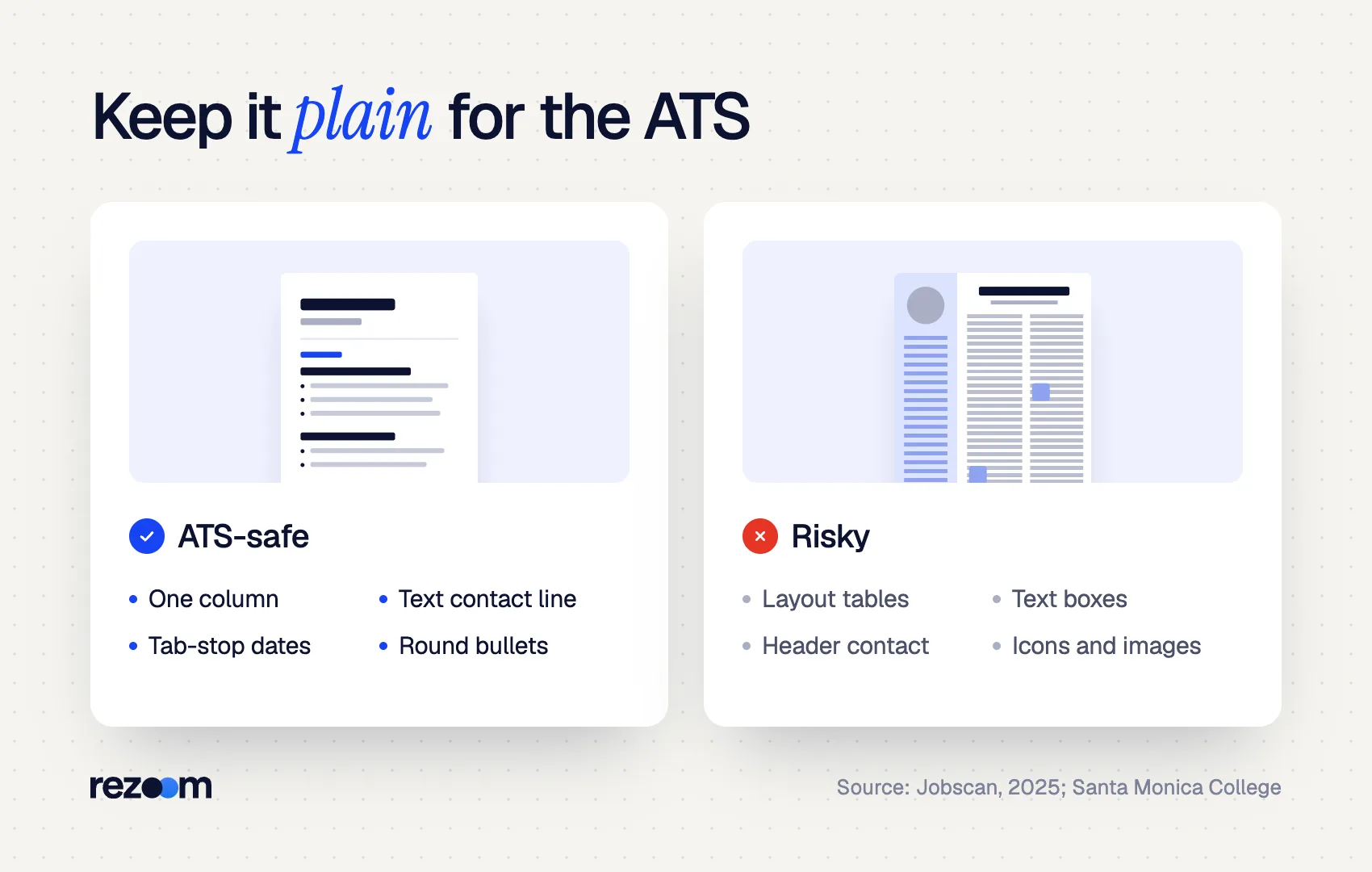
The risk comes from what you insert, not from Google Docs. Santa Monica College lists tables, columns, text boxes, borders and headers among the elements ATS can misread or drop.
Type your name and contact line in the body of the page do: Use one column with Heading 2 section titles do: Align dates with a right tab stop do: Use the exact job title and skills from the posting
Build the layout with Insert > Table dont: Put text inside drawings, text boxes or images dont: Place your email or phone in Insert > Headers & footers dont: Use icons for phone, email or skill ratings
A quick self-test: select everything with Ctrl+A (Cmd+A on Mac), copy, and paste into a plain text file. If sections appear out of order or text goes missing, an ATS will likely see the same thing. For layout specifics, see our ATS-friendly resume template guide and today's companion piece on two-column resumes and ATS.
How do you download, name and share your resume?
Click File > Download and choose PDF Document (.pdf) unless the posting asks for Word, then choose Microsoft Word (.docx). Name the file with your full name and the word Resume. Keep a master copy in Docs and use File > Make a copy for each tailored version so you never overwrite your original.
Google's download instructions are short: open the document, click File > Download, and choose a file type. For most applications, pick PDF Document (.pdf). It keeps your layout fixed on every device.
Some systems still prefer Word files. Santa Monica College says .docx "is the most accurately parsed by ATS," and suggests it when the posting does not name a file type. If an upload form asks for Word, use File > Download > Microsoft Word (.docx), then open the file once to check spacing. Our guide on PDF or Word resumes covers the trade-offs.
Name the file so recruiters can find it, such as Jordan-Lee-Resume.pdf. Our resume file name guide has more patterns.
Never email a Docs sharing link instead of a file unless the employer asks for one. Links can fail on permission settings, and you may keep editing the live version after you apply.
Keep one master and name each version
Keep one untouched master resume in Google Docs. For each application, use File > Make a copy and add the company name to the title. Google Docs also lets you name points in version history, so you can roll back to "Before Meridian edits" if a tailored change goes wrong.
If formatting by hand feels slow, the Rezoom AI resume builder creates an ATS-safe layout from your details and exports a PDF in minutes. You can still paste the result into Google Docs for final edits. Working from a phone instead? See our sibling guide on how to make a resume on your phone.

Frequently asked questions
Does Google Docs have resume templates?
Yes. Open the Google Docs home screen and click Template gallery at the top right. The resume section has several free designs. Check each one for tables or two columns before you use it for online applications.
How do I make a one-page resume in Google Docs?
Switch to Pages format, set margins to 0.5–0.75 inch, use 10–11 pt body text, and set paragraph spacing to 0 before and 4–6 points after. Then cut the weakest bullets. Our [one-page resume](https://rezoom.io/one-page-resume/) guide shows what to remove first.
Can ATS read a resume made in Google Docs?
Yes, when it uses one column, standard fonts and plain text. Avoid tables, text boxes, images and contact details in the header. Download as PDF or .docx, never as an image.
How do I put dates on the right side in Google Docs?
Turn on View > Show ruler, click the ruler at the right margin and choose Add right tab stop. Press Tab before each date. The date aligns to the right edge and stays there.
Why can I not change margins in my Google Doc?
Your document is probably in pageless format. Go to File > Page setup, select Pages, then set the margins.



Comments