

Summary
To make a resume in Word, start with File > New and a resume template, or a blank document. Set margins in Layout > Margins, apply Heading styles from the Home tab to each section, and align dates with a right tab stop from the Paragraph dialog's Tabs button. Keep contact details out of the header, run Review > Check Accessibility, and export with File > Export > Create PDF/XPS.
To make a resume in Word, open a blank document or a template from File > New, set your margins, apply heading styles to each section, align dates with a right tab stop, and export a PDF. Desktop Word gives you precise control over spacing, which is why one university career adviser calls it "the gold standard for résumé precision."
That control cuts both ways. Word templates often hide tables and text boxes, and a header that looks tidy can vanish inside an applicant tracking system (ATS). This guide shows how to make a resume in Word step by step, with menu paths checked against Microsoft's own support pages for Word for Microsoft 365, 2024, 2021, 2019 and 2016.
Looking for a finished design instead? Our Word resume template guide reviews ready-made layouts. This article teaches you to build and fix one yourself.
Should you use a Word resume template or a blank document?
Use a blank document when you apply through online portals, because you control every element. Use a Word template when speed matters, then inspect it for tables, text boxes and header content before you fill it in. Turning on formatting marks shows the hidden structure in seconds.
Microsoft's resume help page lists the steps: go to File > New, type "Resume" in the search box, double-click a template, and replace the placeholder text. Microsoft says Word offers "dozens of professionally-designed resume and cover letter templates."
Many of those designs rely on layout tricks. A two-column sidebar is usually a table. A colored name banner is often a text box or a shape. Santa Monica College Career Services lists tables, columns, text boxes, borders and headers as elements ATS can misread or drop.
Before you type into a template, click the Show/Hide ¶ button on the Home tab. Table cell markers and floating objects become visible. If the layout depends on them, a blank document is the safer start.
How do you set margins, fonts and spacing for a resume in Word?
Go to Layout > Margins and pick Normal (1 inch) or Custom Margins down to 0.5 inch. Set body text to 10–12 pt in a common font like Calibri or Arial. Then use Home > Line and Paragraph Spacing > Line Spacing Options to set single spacing with a few points after each paragraph.
Word starts every new document with 1-inch margins on all sides, according to Microsoft's margins guide. That is a good default for a resume in Word. If you need room, select Layout > Margins > Custom Margins and enter 0.75 or 0.5 inch.
Spacing is where most Word resumes lose space. Word's default spacing adds room after every paragraph, so bullets look loose. Fix it in one place:
- Select the whole document with Ctrl+A.
- Go to Home > Line and Paragraph Spacing and choose Line Spacing Options.
- Set line spacing to Single, spacing Before to 0 pt and After to 4 or 6 pt.
Microsoft's line spacing guide also points to Design > Paragraph Spacing for document-wide presets. Use it to preview a tighter or looser look in one click.
| Setting | Where in Word (desktop) | Recommended value |
|---|---|---|
| Margins | Layout > Margins > Custom Margins | 0.5 to 1 inch |
| Paper size | Layout > Size | Letter for US jobs |
| Body font | Home > Font | Calibri, Arial or Georgia, 10–12 pt |
| Line spacing | Home > Line and Paragraph Spacing | Single, 0 pt before, 4–6 pt after |
| Section headings | Home > Styles > Heading 1 | 14–16 pt |
| Dates | Home > Paragraph launcher > Tabs | Right tab at the right margin |
The Santa Clara University Career Center recommends 10–12 point body text, 14–16 point headings and common fonts such as Arial, Times New Roman or Calibri. Compare options in our best fonts for a resume guide, and see our resume margins and spacing guide for edge cases.
How do you build section headings with Word Styles?
Type each section name, select it, and click Heading 1 in the Styles gallery on the Home tab. Then right-click Heading 1 and choose Modify to set one font, size and color for all headings. Headings also appear in View > Navigation Pane, where you can drag whole sections into a new order.
Styles are the feature that makes Word better than manual formatting. Microsoft's styles guide describes the basic move: select the text, point to a style on the Home tab to preview it, then select it.
Build your resume structure like this:
- Type your name on the first line and apply the Title style.
- Type your contact line under it as normal text.
- Type Summary, Experience, Skills and Education on their own lines and apply Heading 1 to each.
- Right-click Heading 1 in the Styles gallery and choose Modify to change all headings at once.
The payoff comes when you tailor. Open View > Navigation Pane, and each heading appears as a draggable item. Microsoft notes that headings let you move parts of a document this way. Drag Skills above Experience for a career change, and every bullet underneath moves with it.
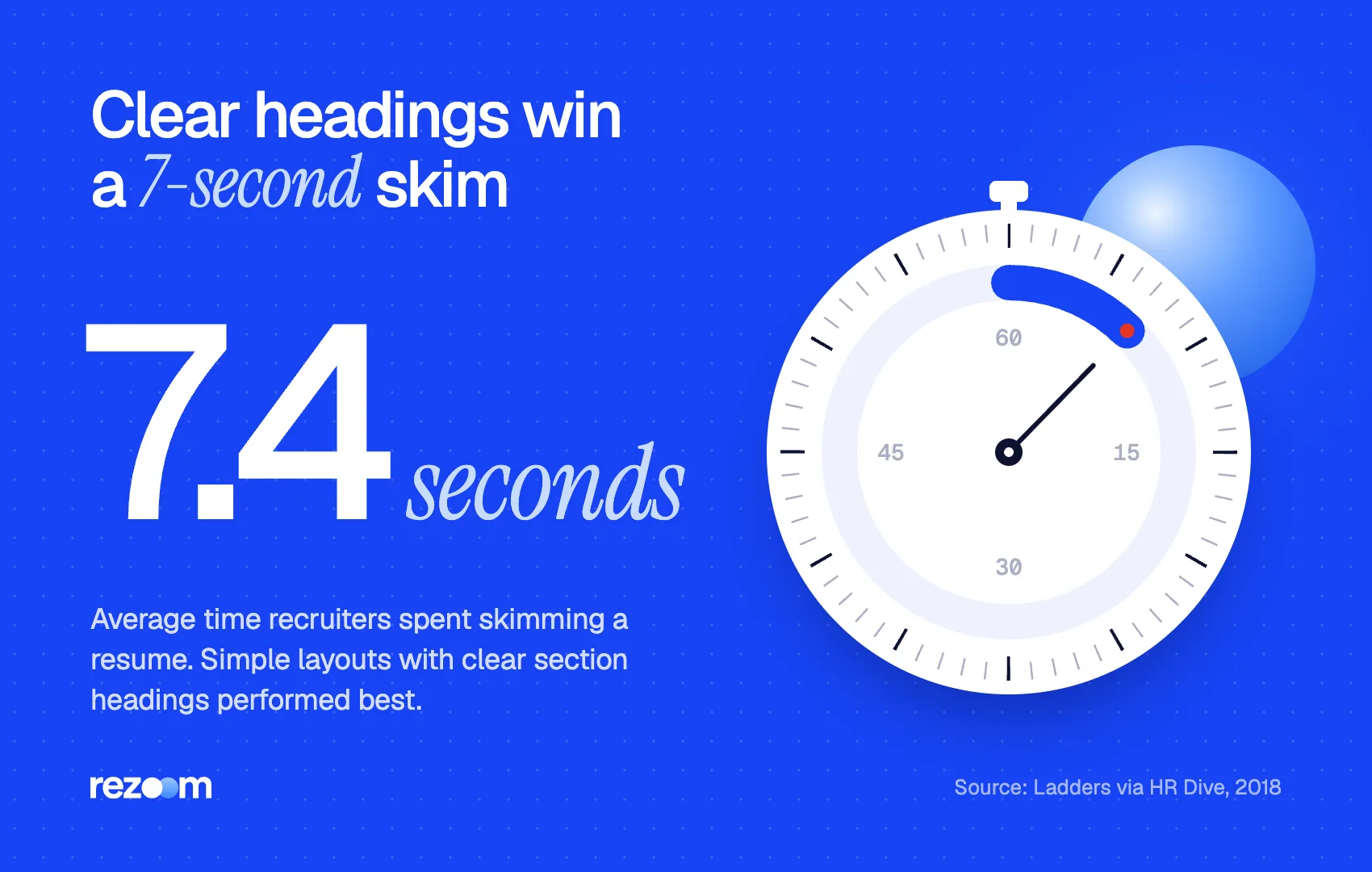
Clear headings also help the human reader. In the Ladders eye-tracking study, recruiters skimmed a resume for an average of 7.4 seconds. Resumes with simple layouts, clear sections and bold heading titles performed best. Read more in our guide to how long recruiters look at a resume.
SAM CARTER (Title style) Austin, TX | (512) 555-0193 | [email protected] | linkedin.com/in/samcarter
PROFESSIONAL SUMMARY (Heading 1) Marketing analyst with 5 years in B2B software. Built a lead-scoring model in Excel that lifted sales-qualified leads 22% in two quarters.
Keep the name and contact line in the body, not in Insert > Header. The SCU career center warns that ATS "typically do not read headers and footers." Our resume header guide covers what that line should include.
How do you align job titles and dates in Word?
Set a right tab stop at the right margin. On the Home tab, open the Paragraph dialog launcher, click Tabs, enter the position, choose Right alignment, click Set and then OK. Press Tab before each date. Word for the web cannot create tab stops, so do this step in the desktop app.
Spaces and tables are the two common ways people misalign dates. Spaces drift as soon as you edit. Tables can scramble reading order in an ATS. A right tab stop keeps the date pinned to the margin.
The exact steps from Microsoft's tab stop guide:
- Select the lines that hold job titles and dates.
- On the Home tab, click the Paragraph dialog launcher (the small arrow in the Paragraph group).
- Click Tabs.
- In Tab stop position, enter your text width. On Letter paper with 1-inch margins, that is 6.5 inches; with 0.75-inch margins, 7 inches.
- Under Alignment, choose Right. Click Set, then OK.
Microsoft adds an important limit: "Tab stops can't be set or modified in Word for the web." If you build your resume in Word in a browser, open it in the desktop app for this step, or keep dates on their own line.
Marketing Analyst, Northwind Software, Austin, TX [Tab] Jun 2021 – Present
- Built an Excel lead-scoring model that lifted sales-qualified leads 22% in two quarters
- Cut monthly reporting time from 3 days to 4 hours by automating Power BI dashboards
- Ran 30+ A/B tests on landing pages, raising demo requests 15%
Use the Bullets button on the Home tab for these lines and keep a plain round bullet. Our guide to writing resume bullet points explains how to build each line around a result.
How do you check that a resume in Word is ATS friendly?
Remove tables, text boxes, images and header content, then run Review > Check Accessibility to catch structure problems such as missing headings or images without text. Finally, paste the whole resume into Notepad. If anything is missing or out of order, an ATS will likely see the same problem.
ATS screening is near-universal. Jobscan's 2025 report found 99.7% of recruiters use keyword filters in their ATS. Every keyword in your resume therefore needs to exist as plain, ordered text.
Word has a built-in check that helps. Microsoft's Accessibility Checker runs from Review > Check Accessibility and lists errors and warnings with suggested fixes. It is not an ATS test. However, flags about tables, floating objects and missing headings point to the same elements that confuse parsers.
Apply Heading 1 to every section title do: Align dates with a right tab stop set in the Tabs dialog do: Type contact details in the first lines of the body do: Run Review > Check Accessibility before exporting
Use a table or columns to build a sidebar dont: Place your name in a text box, shape or WordArt dont: Put phone or email in Insert > Header dont: Use skill-rating bars, icons or photos
Then do the Notepad test: Ctrl+A, copy, and paste into a plain text editor. Text that came from text boxes or the header is often missing. For a full layout checklist, read our ATS-friendly resume template guide and today's companion piece on two-column resumes and ATS.
Should you save your Word resume as DOCX or PDF?
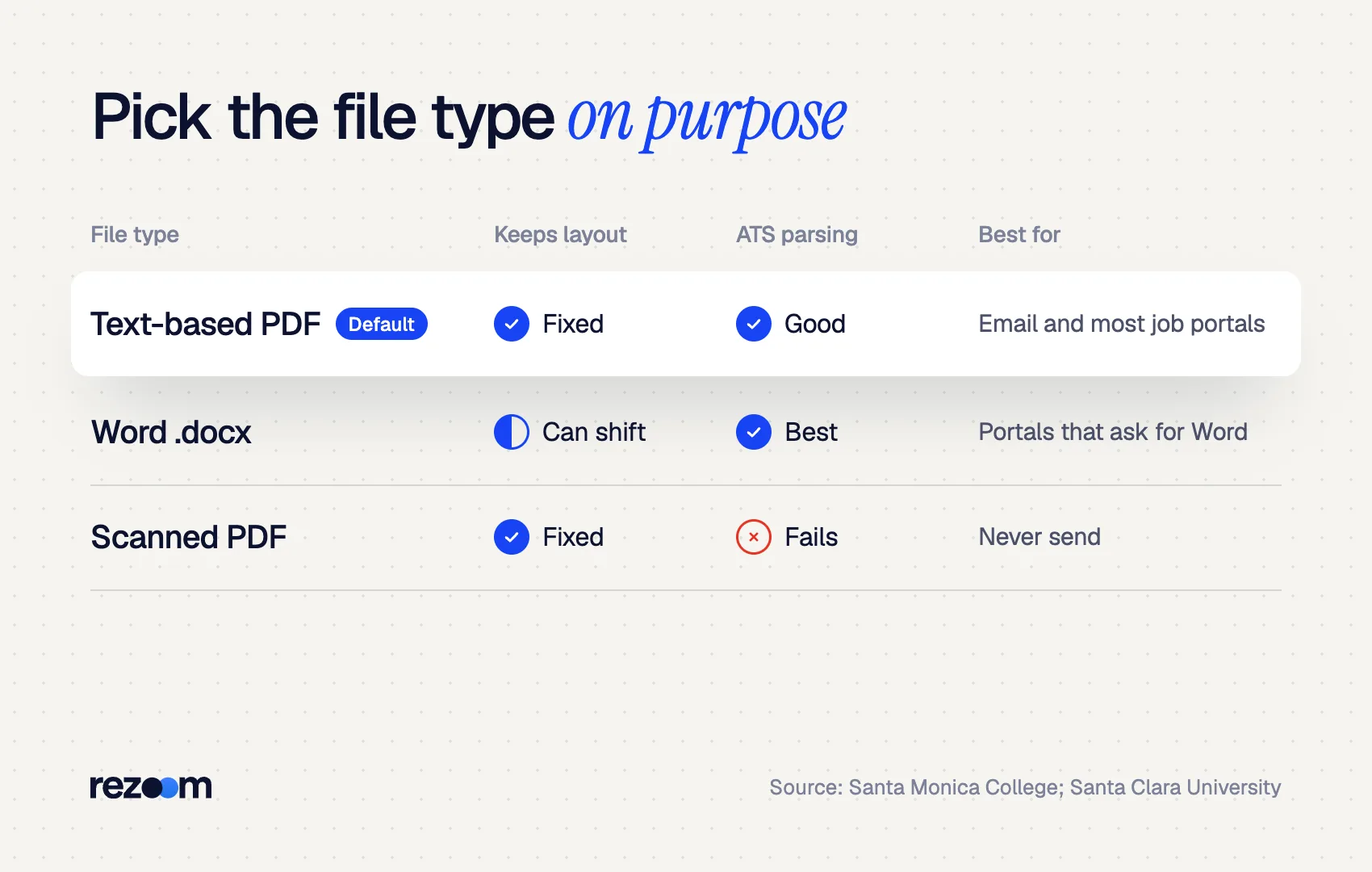
Follow the job posting first. If it names no format, a text-based PDF keeps your layout fixed, while a .docx is the safest choice for portals that ask for Word. In Word for Windows, use File > Export > Create PDF/XPS. On a Mac, use File > Save As and choose PDF as the file format.
Career centers disagree slightly here, which is why the posting decides. Santa Monica College says .docx "is the most accurately parsed by ATS" and suggests it when no type is mentioned. Santa Clara University notes that most systems accept and prefer PDF, as long as it "is not image-based."
To create the PDF, Microsoft's Windows instructions are: select File > Export, then Create PDF/XPS Document > Create PDF/XPS. On a Mac, Microsoft's guide says to choose File > Save As, select File Format, pick PDF and select Export. In Word for the web, use File > Print and choose Save as PDF.
Open the PDF and try to highlight a line of text. If you can select words, the file is text-based. A scanned or image-only PDF gives an ATS nothing to read. Name it clearly, such as Sam-Carter-Resume.pdf; our resume file name guide has more patterns. The full comparison sits in our PDF or Word resume guide.
Save a master .docx and export copies
Keep one master resume as a .docx and never send it. For each job, use File > Save As with the company name in the file name, tailor the copy, then export the PDF from that copy. Your styles and tab stops carry over, so each new version takes minutes instead of an hour.
Prefer to skip the formatting entirely? The Rezoom AI resume builder generates an ATS-safe layout from your details and exports both PDF and Word-ready text. Building in Google's editor instead? See our sibling guide on how to make a resume in Google Docs.

Frequently asked questions
Where are the resume templates in Microsoft Word?
Go to File > New and type "Resume" in the search box. Double-click a template to open it, then replace the placeholder text. Check it with Show/Hide ¶ for tables and text boxes first.
Are Microsoft Word resume templates ATS friendly?
Some are, many are not. Templates with sidebars, text boxes or contact details in the header can lose information in an ATS. One-column templates with real text headings are the safest.
How do I make a one-page resume in Word?
Set margins to 0.5–0.75 inch in Layout > Margins, use 10–11 pt body text, and set spacing to 0 pt before and 4–6 pt after. Then cut the weakest bullets. Our [one-page resume](https://rezoom.io/one-page-resume/) guide shows what to drop first.
How do I put dates on the right in Word?
Open the Paragraph dialog launcher on the Home tab, click Tabs, enter the right-margin position, choose Right alignment, then Set and OK. Press Tab before each date.
Can I make a resume in Word for the web?
Yes, for typing and styles. Word for the web cannot set tab stops, so right-aligned dates need the desktop app.
Should I put my contact information in the Word header?
No. Many ATS skip header and footer content. Type your name and contact line at the top of the document body instead.



Comments