

Summary
Lever ATS stores your application as a candidate profile, auto-reads your uploaded resume to fill the form, and moves you through stages that recruiters control. Recruiters find candidates with keyword search and, on accounts that use it, an AI feature called Talent Fit that surfaces likely matches. Lever says recruiters always make the final call. Your job is to give the parser clean text and the search the exact terms from the posting.
Lever ATS works as a shared workspace for a hiring team: your application becomes a candidate profile, the form auto-reads your resume, and recruiters move you through stages by hand. Software helps them sort and search, but Lever states that recruiters always have the final say.
That last point matters because many guides still describe Lever as a system that never ranks anyone. That was a fair summary a few years ago. Today Lever, now sold as "Lever by Employ", markets an AI matching feature called Talent Fit, so the picture is more mixed.
Below you will find what Lever documents publicly, what third-party testers report, and where the line between the two sits. If you want the general picture first, start with our explainer on how ATS software works.
How does Lever ATS work?
Lever ATS is recruiting software that turns each application into a candidate profile, auto-reads the uploaded resume to prefill fields, and tracks candidates through stages such as Applied, Screening, Interview, Offer and Hired. Recruiters search, review and advance candidates. AI features can surface matches, but people make the decisions.
Lever describes its applicant tracking system as a place to track candidates across stages from Applied to Hired, with CRM tools for nurturing talent and pipeline views by stage and source. The same page highlights AI interview transcripts and summaries.
In plain terms, the Lever ATS does three jobs for an employer:
- Collects applications through a hosted job page and form.
- Stores candidates as searchable profiles, so a recruiter can find you again for a later role.
- Tracks the process, including feedback, interview notes and stage changes.
What it does not do, by design, is decide who gets hired. Lever's own AI page says plainly: "Recruiters always have the final say in decision-making."
What happens when you apply through Lever?
You upload a resume, Lever tries to auto-read it, and the form prefills your name and contact fields. You complete required fields, links and any custom questions, then submit. Lever creates or updates a candidate profile, merges records with the same email address, and usually sends a confirmation email.
We opened a live Lever-hosted application form to see the steps a candidate goes through. It starts with "Resume/CV" and an attach button. After upload, the widget shows "Analyzing resume…" and then either a success message or "Couldn't auto-read resume."
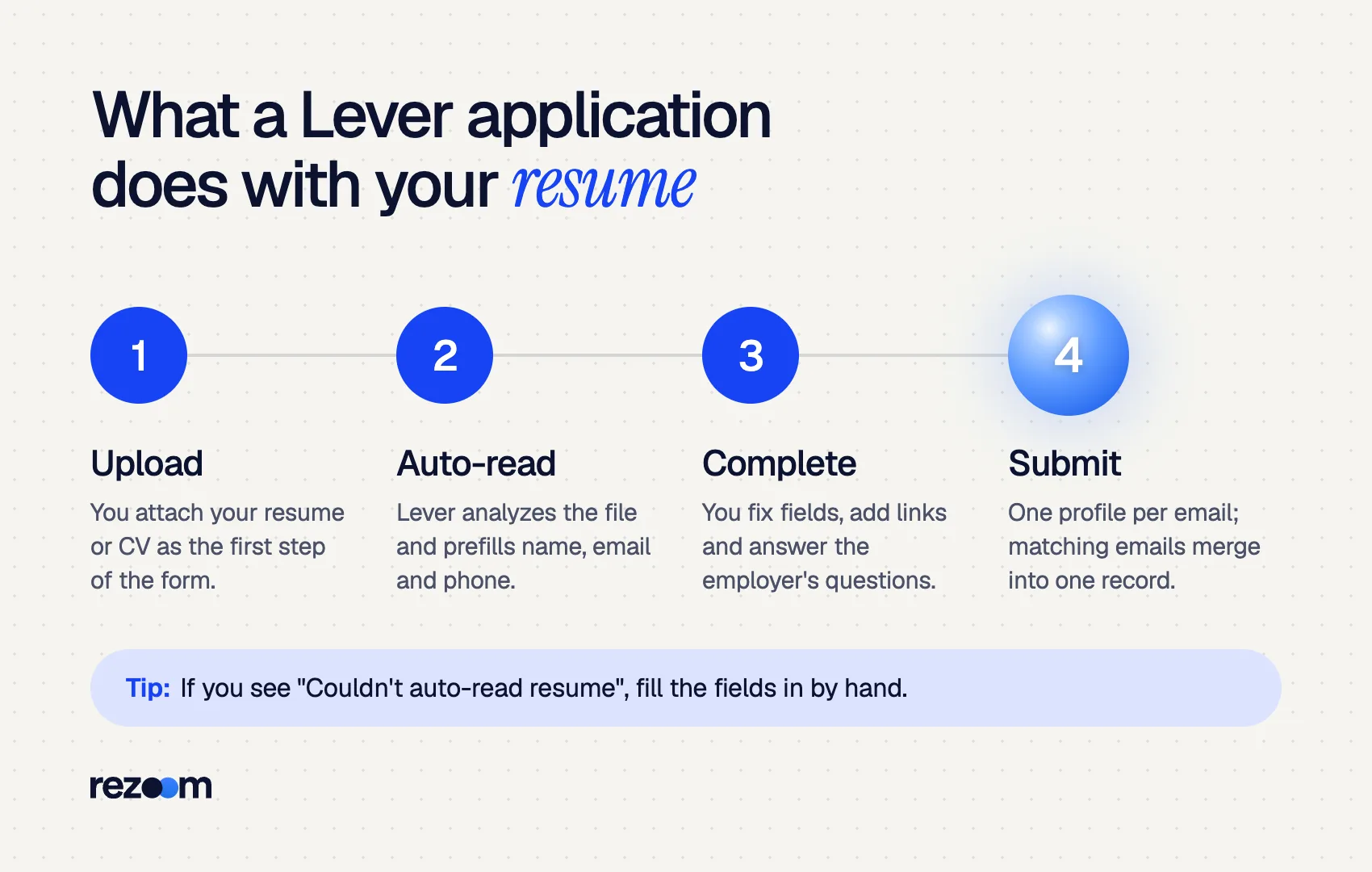
Next come the standard fields: full name, email, phone, current location and current company. Then optional links for LinkedIn, GitHub and a portfolio. After that, each employer adds its own questions. The form we opened asked about work authorization, visa sponsorship and the last university attended.
Lever's public developer documentation explains what happens on submit. "The name and email address fields are both required," and "Candidate records will be merged when email addresses match." The candidate is emailed after applying unless the employer turns that off.
That merge rule has a practical effect. Apply to two roles at one company with the same email, and the recruiter sees one profile with your history, not two strangers.
Full name: Alex Rivera
Email: [email protected]
Phone: (312) 555-0148
Current location: Chicago, IL
Current company: Northline Logistics
LinkedIn URL: https://www.linkedin.com/in/alexrivera
If any of those fields come back blank or wrong, fix them by hand before you submit. The form is the record recruiters filter on, so a wrong company name or missing location costs more than a typo in a bullet.
Does Lever ATS parse your resume correctly?
Lever parses standard Word, PDF and similar text files well and pulls out contact details, work history and job titles. It cannot read text inside images. Simple one-column layouts parse most reliably. Always review the prefilled fields, because the form, not your design, is what recruiters filter and search on.
Jobscan, which tests how ATS platforms handle resumes, reports that Lever extracts fields such as name, work history, job title, email, phone and LinkedIn profile. It lists accepted formats as Word, PDF, RTF, WordPerfect, HTML and OpenOffice, and notes that Lever cannot parse images.
So the risk is not the file type. It is anything that hides text from the parser:
- A resume exported as a picture, or a scan.
- Contact details inside a header graphic or text box.
- Skills shown as icons, bars or logos instead of words.
- Two-column layouts where the reading order gets scrambled.
A text-based PDF is fine. If you are unsure which file to send, our guide on PDF or Word for your resume covers the tradeoffs, and today's guide on whether an ATS can read a PDF goes deeper. Layout risks are covered in two-column resumes and ATS.
Does Lever rank or reject candidates automatically?
Lever does not auto-reject resumes on a score. Its Talent Fit feature uses AI matching and employer-set criteria to surface high-potential candidates, and Lever states that recruiters always have the final say. Rejections happen when a person moves you out, or through rules and questions the employer configures.
This is where older guides fall behind. Jobscan's review says that, unlike some systems, Lever doesn't match your resume to the job description or score your resume, and that human reviewers assign scores instead.
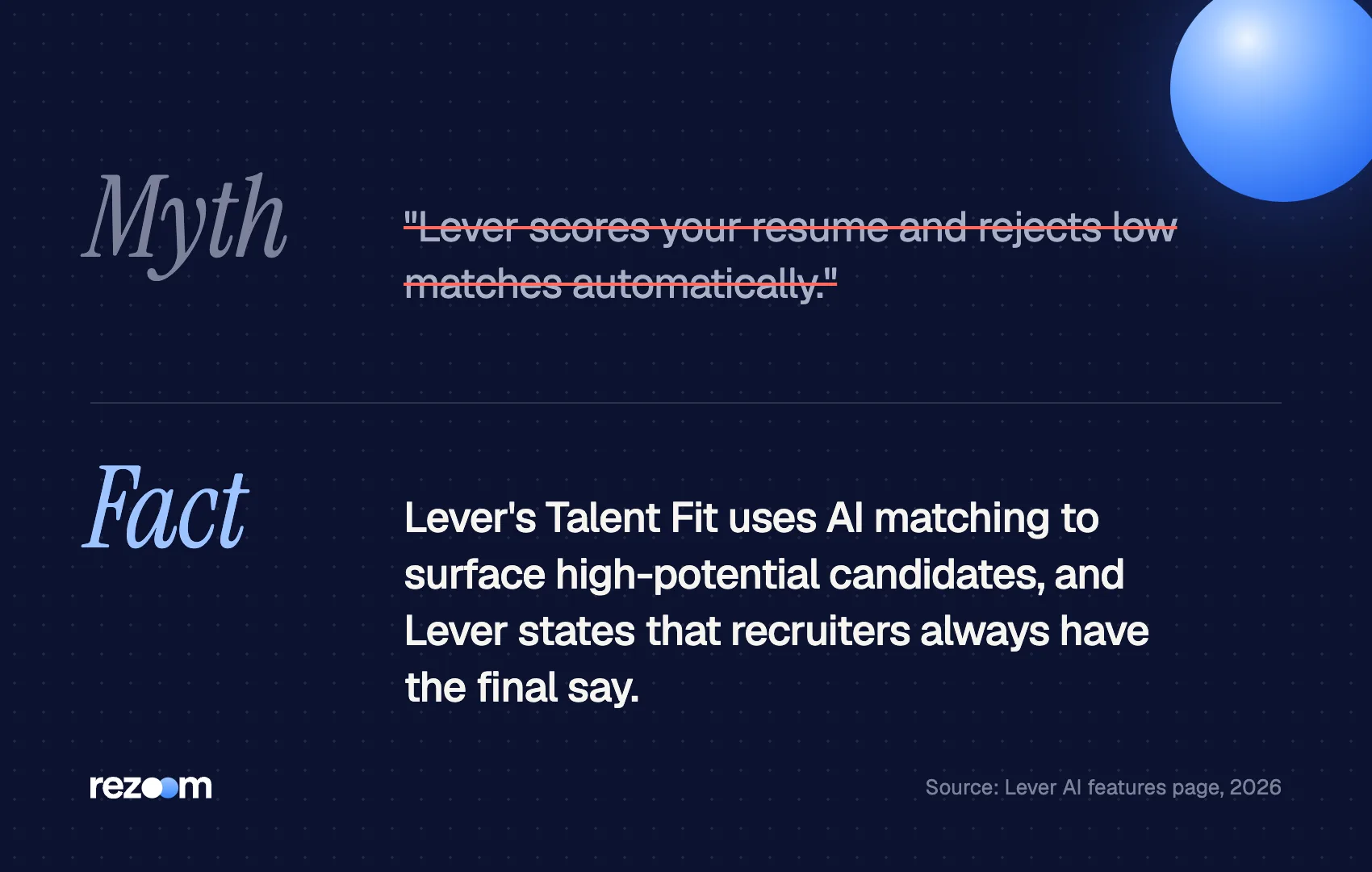
Lever's current product pages add a newer layer. They say Talent Fit uses "AI-powered matching and customizable criteria to surface high-potential candidates". Lever's AI screening page frames it as support: "AI should support recruiters, not replace them."
Here is what that means for you, separated by how solid the evidence is:
| Claim | Status | What it means for you |
|---|---|---|
| Lever auto-reads your resume into the form | Documented (live form) | Check prefilled fields before submitting |
| Records merge on matching email | Documented (Lever developer docs) | Use one email for every role at a company |
| Talent Fit surfaces likely matches | Documented (Lever product page) | Match the posting's must-have terms |
| Recruiters make the final call | Documented (Lever product page) | Write for a human reader, not only software |
| Every employer turns on Talent Fit | Not documented | Assume it may or may not be active |
| Lever rejects low scores on its own | Not documented | Treat "auto-reject" claims with caution |
Filtering still happens, just not where many people expect. A Harvard Business School and Accenture study found that 88% of employers agree qualified high-skills candidates are vetted out because they do not match the exact criteria in the job description. That is a statement about how employers configure screening, not about Lever specifically. Our post on the ATS rejection myth explains where real rejections come from.
How do recruiters search for candidates in Lever?
Recruiters search Lever profiles by keyword, and Jobscan reports the search handles word stems, so "collaborating" also finds "collaborated". It does not expand acronyms, so "SEO" and "search engine optimization" are separate searches. Write both the full term and the acronym once.
Search is where most of your resume's work happens in a Lever ATS account. A recruiter opens the candidate database, types a skill or title, and scans results.
Jobscan reports two useful details. Lever's search uses word stemming, so a search for "collaborating" also returns collaborate, collaborated and collaborative. However, it does not expand abbreviations, so a search for "Search Engine Optimization" will not find a resume that only says "SEO".
That gives you a simple rule: write each key skill once in full, with the acronym in brackets. Our guide to resume keywords shows how to pick the right ones from a posting.
- Search engine optimization (SEO), Google Analytics 4 (GA4), HubSpot
- Certified Public Accountant (CPA) | Generally Accepted Accounting Principles (GAAP)
- Managed customer relationship management (CRM) migration to Salesforce for 40 reps
Because of stemming, you do not need every verb form. One clear use of "forecast" covers searches for "forecasting" as well.
How do you format a resume for Lever ATS?
Use a one-column, text-based Word or PDF file with standard headings, contact details in the body, and skills written as words. Mirror the posting's key terms, spell out acronyms once, and check every field Lever prefills. Then write for the recruiter, who makes the final decision.
The formatting rules for Lever are the same ones that work for most systems. Our ATS resume format guide covers them in detail, and the ATS-friendly resume template gives you a ready layout.
Use standard headings such as Experience, Education and Skills do: Put your name, email and phone in the main body text do: Spell out each acronym once, for example "Search engine optimization (SEO)" do: Use the same email for every application at one company
Upload a scanned or image-only resume dont: Show skills as rating bars, icons or logos dont: Leave auto-read fields uncorrected before you submit
Treat the form as part of your resume
On a Lever form, the "Current company" and "Current location" fields are often what a recruiter sees first in a list view. Fill them in exactly, even if your resume already says the same thing, and match your job title to the wording in the posting where it is honest to do so.
Want to know how your file reads before you apply? Run it through the Rezoom ATS resume checker. It flags parsing problems, missing keywords and layout issues in a few seconds. For comparison, see how the Greenhouse ATS works and how iCIMS works.

Frequently asked questions
Does Lever ATS automatically reject resumes?
Lever does not document any automatic rejection based on a resume score. It states that recruiters always have the final say. Employers can still add required questions, and a recruiter can reject you after review.
Can Lever read a PDF resume?
Yes. Lever accepts PDF along with Word, RTF and other text formats. Problems come from image-based PDFs, not from the PDF format itself.
Does Lever score resumes?
Lever does not publicly document an automatic resume score. Its Talent Fit feature uses AI matching to surface high-potential candidates, and recruiters can add their own ratings and feedback.
Which companies use Lever?
Lever does not publish a full customer list. You can tell an employer uses it when the job page or application form sits on jobs.lever.co.
Should I apply to several jobs at the same company on Lever?
You can, but your applications will join one profile when you use the same email. Apply only to roles you genuinely fit, because the recruiter can see the full list.
Do I need a cover letter for Lever applications?
Only if the employer asks for one. Many Lever forms include an optional "Additional information" box, and a short, specific note there can help.



Comments